Choose the setup
Choose a key, tempo, mode and chord progression. Selecting a mode applies its ingredient settings and generates a new line. Manual ingredient changes switch the mode to User.
Line Lab generates a phrase over the changes you choose. Play the complete line, inspect its notation and TAB, or select an ingredient to hear that move by itself.
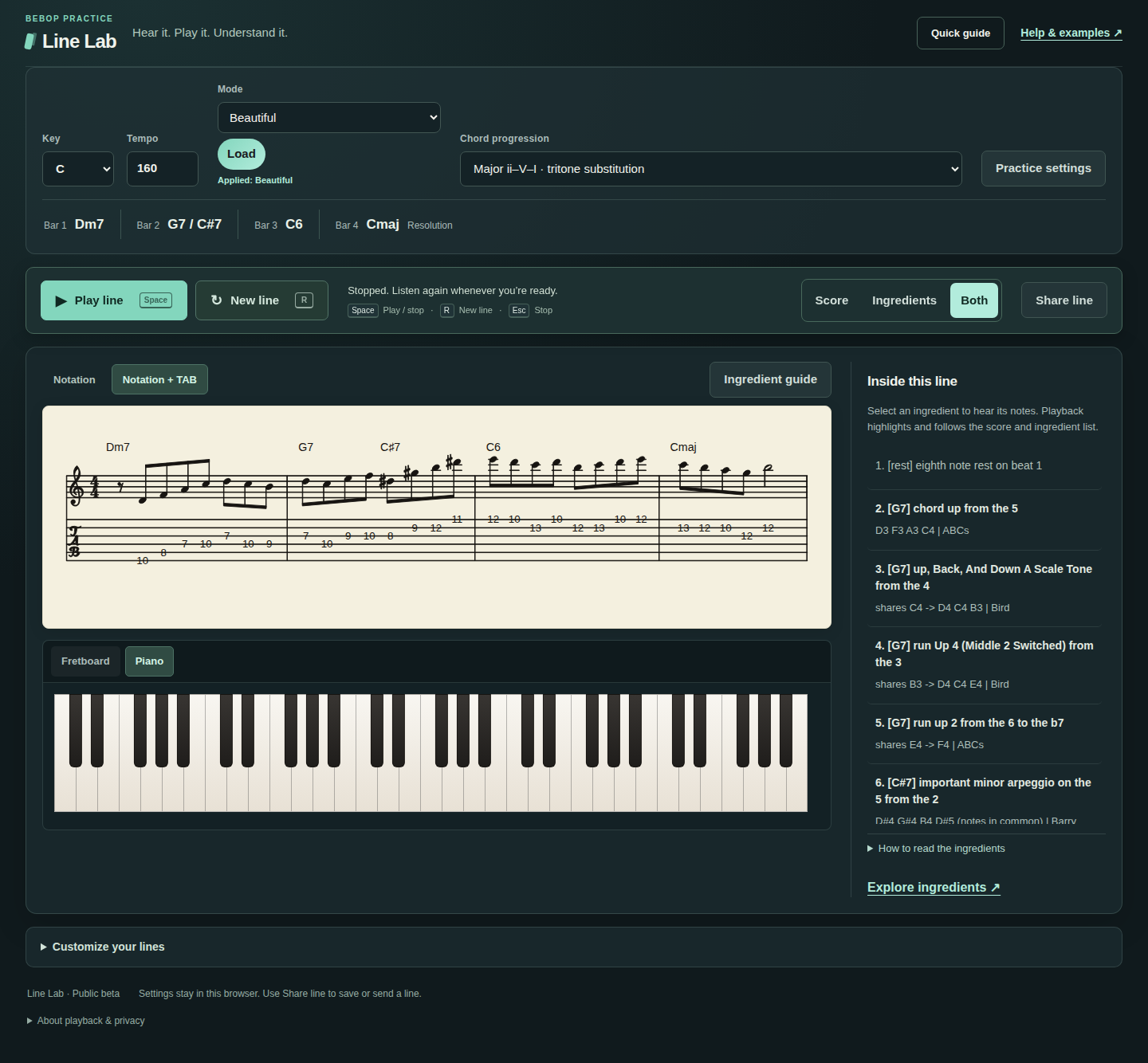
Choose a key, tempo, mode and chord progression. Selecting a mode applies its ingredient settings and generates a new line. Manual ingredient changes switch the mode to User.
Press New line, then Play line. Follow the chord names above the notation and TAB. A new line plays automatically; the first one waits for you.
Switch between Score, Ingredients and Both. Select a listed ingredient to audition its notes; the score highlights the same spot.
Changing the Mode, Key, Chord progression or Require this ingredient creates a new line without playing it. Changing Tempo keeps the notes. After changing ingredient weights, pack choices, phrase settings or individual chords, press New line to apply those changes.
Open Practice settings beside the key, tempo and progression controls. Start with the Main tab; use Save and Close when you are done.
Solo Instrument is the melody sound. Comp Instrument is the chord accompaniment. Their volume controls let you bring the line forward or turn the backing down.
Solo Octave and Comp Octave shift what you hear by octaves; they do not rewrite the displayed notes or guitar TAB. Stop and replay the line after changing playback settings.
Turn on Quarter-Note Metronome and 4-Beat Count-In together to hear four beats before the phrase. Adjust Metronome Volume separately. Turn off the count-in to skip the four-beat lead-in.
Start Beat chooses where the line enters: a beat or its “&.” Random chooses among the entries enabled in Random Settings. Humanize uses a weighted entry pattern, adjusted in the Rests tab.
Humanize Rests also allows space inside the line. Rest Amount changes how much space is requested; the text below the slider explains the current level.
Movement Template favors a phrase shape. Choose None for no template preference, or use Template Help to compare the named options.
In Practice settings → Rests, the three groups control Humanized Start Entry, Internal Rest Start Beats, and Internal Rest Lengths. The first group applies when Start Beat is Humanize; internal-rest controls work with Humanize Rests.
These controls use a different scale from ingredient weights: checked with a value of 100 means the starting rest preference. It does not mean a rest occurs in every line. Use Reset To Bird Defaults to restore the rest controls, then make a new line.
Expand Customize your lines below the main controls. After changing these settings, press New line to generate with the updated choices.
Choose it under Require this ingredient. Line Lab makes a new line and waits for you to press Play line. This asks for the move to appear in the line, while leaving room for other material around it. A disabled option cannot fit the current setup. Change the progression, or open that move from the ingredient catalog and use its compatible setup link.
Choose No required ingredient when you want free generation again. Requiring an ingredient is stronger than raising its weight.
To limit the available material, use Families, Packs and Choose ingredients. Keep enough compatible ingredients enabled for the generator to complete the phrase.
Open Customize your lines → Choose ingredients. The window is titled Ingredient Editor; its tab is Ingredient Preferences. Each row has an on/off checkbox and a weight from −5 to +5.
| Control | Meaning |
|---|---|
| Checked, weight 0 | Available with no extra preference from this slider. Zero does not turn it off. |
| Positive weight | Favor it when it fits. A higher number is a stronger preference, not a percentage or a promised number of appearances. |
| Negative weight | Make it less likely while keeping it available. Even −5 is not the off switch. |
| Unchecked | Remove it from the ordinary ingredient selection. If you previously required this move, clear that requirement as well. |
| Require this ingredient | Request an actual appearance in the next generated line. Use this separate control when a preference is not enough. |
Weights work within the available choices. Chords, phrase position, enabled packs and families, and the space left in a bar still matter. A high weight cannot make an incompatible move fit, and neutral weights do not mean every ingredient will occur equally often.
Choose a preset close to what you need, then open Customize your lines → Edit chord changes. Work through the bars from left to right.
Backing and Scale are separate. In the normal C-major ii–V setup, Dm7 is the backing chord while G dominant supplies the line material. Do not change that source to a minor scale just because the backing says Dm7. Starting from the supplied preset keeps the intended relationship visible.
Function lets you identify a bar’s harmonic role; leave it on Auto to let Line Lab determine it. Resolution Bar marks a bar as a phrase ending, which may use a short ending ingredient or a held note.
A bar’s Settings button opens its local options, including modifier permissions. Dominant bars may also show Tritone Defaults and To 3rd of V7 (dim last half). Changing these options affects only the corresponding harmonic treatment.
Choosing a progression preset again replaces your custom bars. Use a preset when you want to start over with a known set of changes.
Score, Ingredients and Both choose what is visible. Notation + TAB adds standard-tuning guitar TAB to the notation. The notes are shown at concert pitch; use the playback octave controls if you prefer a different listening register.
In Inside this line, select an ingredient to hear its notes on their own and see the matching notes highlighted in the score. Play line plays the complete phrase with its backing chords. Select Stop to end playback.
The name in brackets describes the move’s scale context. It need not match the backing chord root. The active row highlights during playback without changing the text layout. The list scrolls to keep that row visible, including rests and endings. When two moves share a joining note, the full line plays it once; an individual ingredient audition includes the shared note so you can hear the whole move.
The Fretboard and Piano views below the score offer another way to follow the pitches. Open Ingredient guide beside the notation controls for a short reminder of the ingredient-list terms.
During playback, the notation and TAB scroll together to keep the playing notes visible. The ingredient list follows in its own scroll area, without moving the whole page. You can still swipe either area yourself: automatic following pauses briefly after manual input and stays paused while keyboard focus is inside that area.

Pick a move from Ingredients. Its page shows a complete generated line with notation, TAB, backing and a highlighted featured ingredient.
The catalog’s New example control also leaves your saved settings unchanged. Examples are generated demonstrations, not transcriptions.
Browse all ingredients →Press Play line to start audio. Instrument sounds load over the internet on first use. Check the device volume, Solo and Comp volume, and your connection; try audio again if loading fails. An enabled count-in intentionally delays the first melody note. Ingredient clicks play the move alone, without backing.
A weight is only a preference. Use Require this ingredient for a focused line, and choose compatible changes. For a difficult setup, return to a supplied progression, keep ABCs and Barry plus your chosen move available, and relax extra restrictions. Try a new line again. The ingredient’s catalog page provides a ready-made compatible starting point.
Ordinary Line Lab settings stay in this browser. They do not sync to another device, and generated lines are not saved as a library. Clearing browser data can remove your settings.
Open Customize your lines → Restore starting settings, then confirm with Restore and make a line. This resets the key, tempo, changes, ingredient choices and display, and generates a new line. Choose Keep my settings to cancel. Ingredient links remain temporary setups.
In the main Line Lab app, Space plays or stops, R makes a new line, and Esc stops playback. Shortcuts pause while you edit a control or open a settings window. Open Quick guide to turn Enable keyboard shortcuts off. These shortcuts are for the main app; use the buttons on ingredient example pages.
On a phone, use the view buttons to give the score or ingredient list more room, and swipe the notation sideways to reach later bars.