
Tool guide
Chart Maker
Open to everyone.
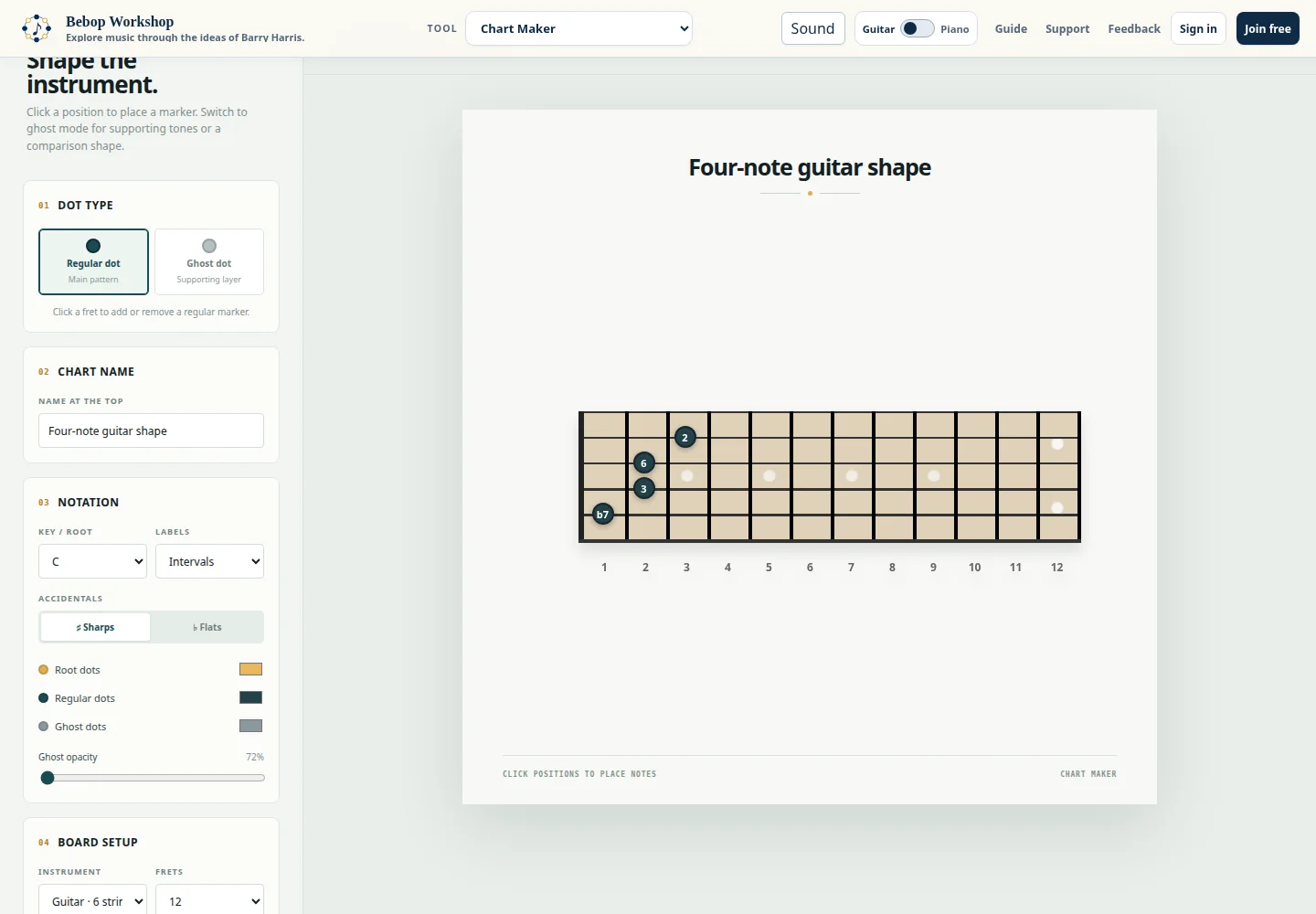
Make your first chart
- Choose Guitar, Bass, or Piano under Board setup.
- Leave Regular dot selected and click the positions or keys you want to emphasize.
- Give the chart a name and choose note names, intervals, or no labels.
- Select Export PNG, choose the size, and download the image.
Use two visual layers
Choose a dot type, then click the instrument. Clicking an existing marker removes it—even when the other dot mode is selected. This makes it possible to clean up the main shape while adding a ghost layer.
Switch between guitar and piano
Use the Guitar / Piano control in the Bebop Workshop header or the app’s Instrument menu. The two controls stay linked. Bass belongs to the guitar display side of the shared switch.
Your fretboard markers remain available during the session when you visit Piano mode, and your piano markers remain available when you return. The piano range control changes how many octaves are shown without changing the notes you already placed.
Choose labels and appearance
- Key / root
- Sets the root color and the reference used for interval labels.
- Intervals
- Labels each marker by its distance from the selected root.
- Note names
- Labels each marker with its pitch name, using your sharp or flat preference.
- Ghost opacity
- Controls how strongly the supporting layer appears.
Turn off Labels on ghost dots when the supporting layer should remain visually quiet. Show instrument + key at top adds that context inside the exported chart.
Export the finished PNG
Use 1× for ordinary screens or 2× for a larger image. Export includes the chart title, optional instrument and key line, the current instrument diagram, its labels, colors, and both marker layers. The editing controls are not included.