
Tool guide · Experimental Alpha
Ingredients
Basic exploration is public. Free adds keys; Pro adds advanced resources and chains.
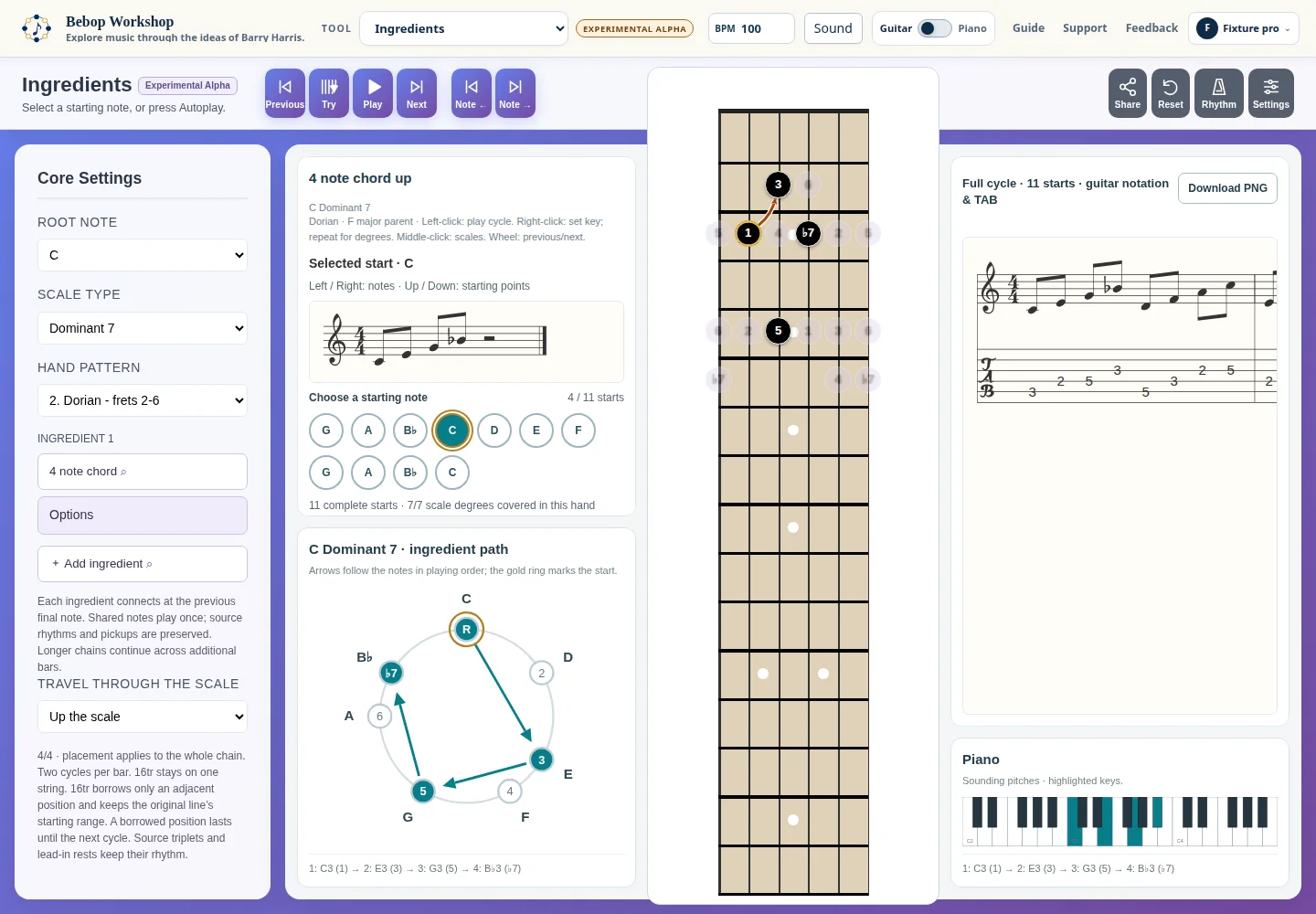
Ingredients presents a selected musical idea in a scale context and lets you move its starting note, hear it, and inspect the result on notation, guitar, or piano views. The same screen can hold a connected chain when that feature is available to your account.
Start with a scale and hand pattern
Use Root Note to choose the tonal center, Scale Type to choose the scale, and Hand Pattern to choose a displayed guitar position. The available pattern choices are rebuilt for the selected root and scale.
The main phrase card shows the selected starting note, the current notation, and the available starting notes. Changing a core setting stops active playback and rebuilds the displayed cycle.
- Choose Root Note.
- Choose Scale Type.
- Choose Hand Pattern, then select a starting note in the row below the notation or use Previous and Next.
Choose an ingredient or connect a chain
Choose ingredient opens a searchable picker. Use its category buttons or search field, then select a compatible ingredient for the current scale. The selected ingredient appears in the ingredient chain.
Add ingredient adds another slot so the next move can connect at a boundary note. Remove is available for later slots. If a selected move is unavailable on the current scale, the app keeps the selection and reports that the chain needs a supported scale or replacement.
A chain can contain up to 64 slots. Availability of additional slots, scales, and ingredient resources depends on account access.
- Select the ingredient button in the chain.
- Search or browse the picker and choose an entry.
- For a connected phrase, select Add ingredient and repeat; use each slot's Options button to adjust it.
Adjust direction, modifiers, and rhythm
An ingredient's Options dialog only shows controls supported by that entry. Direction can be Up or Down when the entry permits both. Some entries expose a named modifier, a half-step span, or a version choice.
For entries that support them, Natback notes and From ½ step below notes are selected per note. A 16tr modifier is available only for eligible eighth-note material. The app keeps these choices attached to the selected ingredient rather than applying them to unrelated slots.
The Ingredient Rhythm editor exposes the written rhythm and any available duration or triplet adjustments. Restore the written rhythm from the editor when you want to discard those rhythm edits.
- Direction changes the order of notes in the selected ingredient.
- Modifier controls change the named version of an ingredient when alternatives exist.
- Rhythm controls change timing while preserving the ingredient choice; unsupported combinations are rejected during setup validation.
Read the guitar and piano views
Open Settings to choose Degrees or Note names, show the hand position or the full parent scale, and combine the instrument overlays. All cycle notes, Playing note, First note border, Next cycle start, Ordered path, arrows, and Move numbers are independent display choices where the current view supports them.
Display Type switches between Horizontal Fretboard, Vertical Fretboard, and Piano Mode. Guitar settings include orientation, flip, size, fret count, fret numbers, and fret markers. Piano Mode can optionally keep the fretboard visible.
The selected phrase is rendered in notation, and the full cycle includes guitar TAB. The score heading identifies that the written notation is one octave above the sound; playback and TAB use the actual pitches.
Control sound and rhythm
Use Tempo in the top header to set BPM; Ingredients accepts values from 30 through 240. Open Sound or Rhythm for instrument, volume, click type, click volume, metronome, and count-in.
Next Behavior controls whether Next plays the next ingredient or keeps the current ingredient. Changing tempo or another sound setting stops active playback so the next run uses the new values.
Try current ingredient plays the selected sequence once. Play starts autoplay through the hand pattern; the transport changes to Stop while audio is active.
- Click Type choices include Ride Bell, Hi-hat, Stick Click, Kick Drum, and Woodblock.
- Count-in choices are None, 2 beats, and 4 beats.
- Changing a sound choice does not change the musical setup being shared.
Understand access levels
The public starter setup is available without sign-in. A signed-in Free account adds key access for the core Ingredients path. Pro access is required for advanced scales, additional resources, connected chains, and the advanced ingredient and rhythm options marked in the app.
During the introductory preview, a Free account may also have Pro features. Your account menu shows whether the preview is active.
When a shared example contains a restricted setting, the example can remain available for its fixed view and playback. The link does not grant account access to edit, generate, or save the restricted setup.
- Basic: a single core ingredient in the supported major or dominant starter path.
- Signed-in keys: the same core path in additional keys.
- Pro: advanced scales, resources, ingredient chains, and advanced modifiers or rhythm controls.
Troubleshoot a setup
If the chain reports that an ingredient is unavailable on the scale, choose a supported scale or replace that slot. If the moves connect but do not fit the selected hand pattern, try another pattern or direction; the app keeps the selected ingredients while it reports the problem.
If a shared setup cannot be loaded, the app leaves the current setup unchanged and reports the validation or service error. A full setup URL can be used when short-link storage is unavailable or a short link cannot be found.
If sound does not start, wait for Loading instrument to finish, check the selected instrument and volume in Sound, and press Play again. Playback is stopped when the page is hidden or the page is left.