
Tool guide
LiveFrets Display
Basic display is public. Sign in for full Display access. Private LiveFrets is separate.
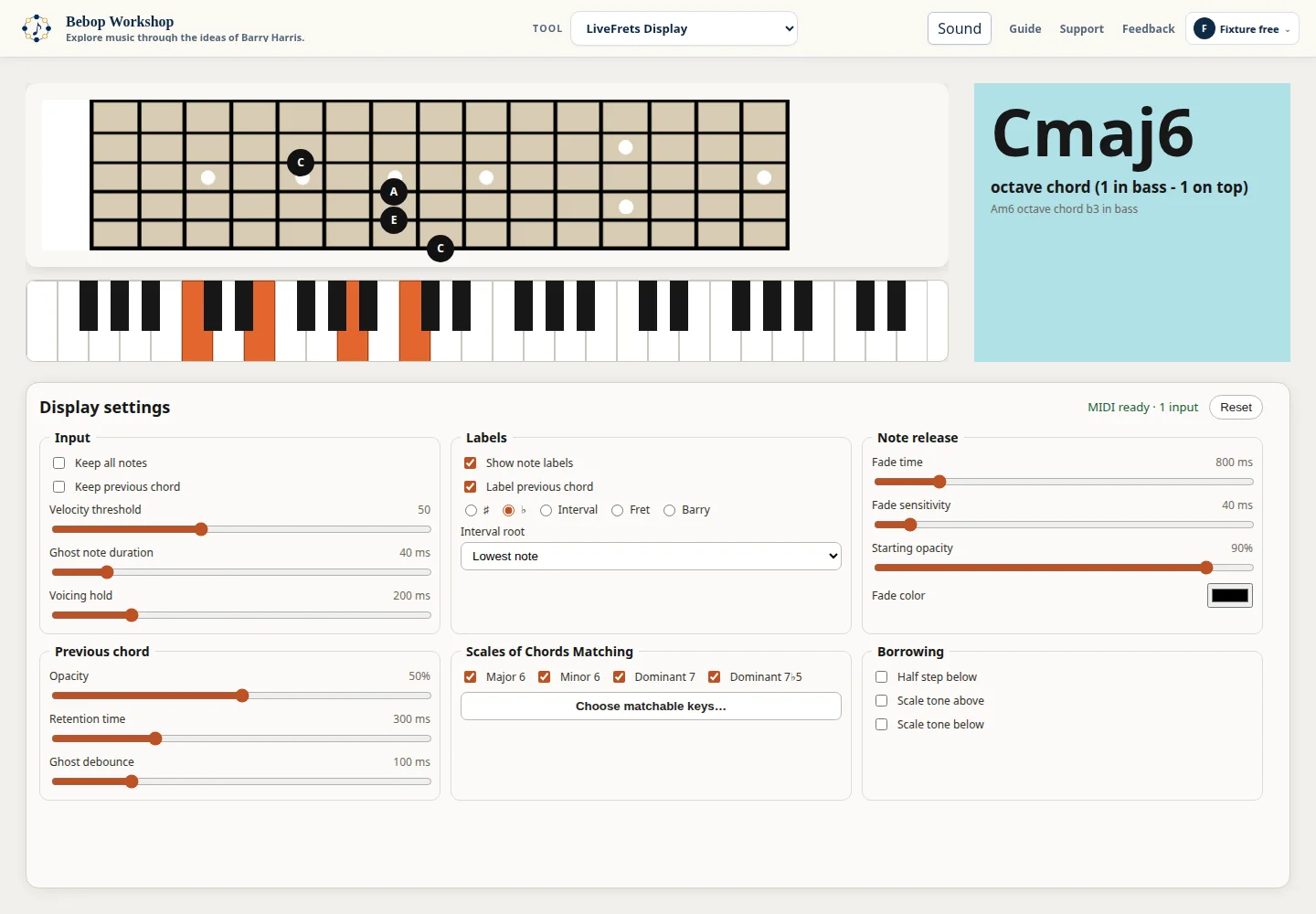
LiveFrets Display shows MIDI guitar input on a fretboard and piano, with optional note labels, fading notes, previous-chord context, and Barry Harris scale-of-chords and borrowing matches for teaching and screen casting.
Connect and see your first notes
LiveFrets listens for MIDI input and updates the fretboard, piano, and detected-voicing card as notes arrive.
- Open the display in a browser that exposes the Web MIDI API.
- Allow MIDI access when the browser asks, then connect or power the MIDI input device.
- Play a note or chord through the connected MIDI input and watch the horizontal fretboard and piano update.
- Open Display settings to choose labels, note retention, fading, and matching options.
- Use Reset to return the public display settings to their defaults.
- The status line reports whether access is being requested, ready, waiting for an input, unsupported, or unavailable.
- The display does not need a separate Play button; sound generation is outside this public display workflow.
MIDI requirements and status
LiveFrets asks your browser for MIDI permission when the browser supports MIDI input, then uses the connected MIDI device to update the display.
- If the browser does not expose Web MIDI, the display reports: Web MIDI is not supported in this browser.
- If access is denied or unavailable, the display reports: MIDI access was unavailable. Check browser permissions.
- If access is granted but no input is connected, the status reports that MIDI access is granted and asks you to connect an input.
- When connected inputs are available, the status reports MIDI ready and the number of inputs.
- A disconnected input clears accepted displayed notes; reconnect the device and play again.
Control the live display
The Input group controls which notes remain visible and how the display recognizes a voicing. The Labels group controls labels and their reference point.
- Keep all notes keeps multiple notes for a string; Keep previous chord retains the previous chord for comparison.
- Velocity threshold sets the minimum MIDI velocity accepted for display.
- Ghost note duration and Voicing hold control note and chord settling behavior.
- Show note labels and Label previous chord control the visible text.
- Label style can use sharps, flats, intervals, frets, or Barry labels. Interval root can be Lowest note or a selected pitch class.
Tune fading and previous-chord context
The Note release group controls how released notes fade. The Previous chord group controls the opacity and timing of the retained chord context.
- Fade time sets the release fade duration; Fade sensitivity and Starting opacity shape the fade.
- Fade color changes the color used for fading notes.
- Previous chord Opacity sets the retained chord's visual strength.
- Retention time and Ghost debounce control how long prior chord information remains and how quickly the display settles repeated input.
- Changing settings updates the display as you work and saves your personal choices in this browser.
Use scale-of-chords and borrowing matches
The Scales of Chords Matching group filters the Barry Harris voicing families that the display may identify. The Borrowing group adds selected related-note detections to the voicing card.
- Scale filters are Major 6, Minor 6, Dominant 7, and Dominant 7 b5.
- Choose matchable keys for each enabled scale type from the SOC Key Filters dialog; All includes every key.
- Borrowing options are Half step below, Scale tone above, and Scale tone below.
- LiveFrets Display is for live visual display; score editing and export are not part of this tool.
Saved choices and access
Display settings are saved in this browser. Reset removes your saved display choices when allowed and restores the default display state.
- Basic note display is available without signing in. Additional Display settings and chord matching require sign-in.
- Without signing in, you can still use the basic note-label display modes and Show note labels; other controls ask you to sign in.
- When your access changes, the tool keeps your working settings and restores them when the additional settings become available.
Troubleshooting
If the display is not moving, check the status line first, then confirm that the browser has MIDI permission and that an input port is connected.
- For an unsupported-browser message, use a browser that supports MIDI input; LiveFrets cannot request permission when MIDI is unavailable.
- For an unavailable-access message, review the browser's MIDI permission and retry after reconnecting the device.
- For MIDI access granted but no input, connect or power the MIDI device and play a note.
- If notes disappear too quickly, increase Fade time, Fade sensitivity, or Retention time; if chords do not settle, increase Voicing hold or Ghost debounce.
- If matching is empty, enable a scale family, keep at least one matchable key selected for it, and check the incoming MIDI notes.