
Tool guide
Scales of Chords
Basic exploration is public. Free adds core practice; Pro adds advanced resources and settings.
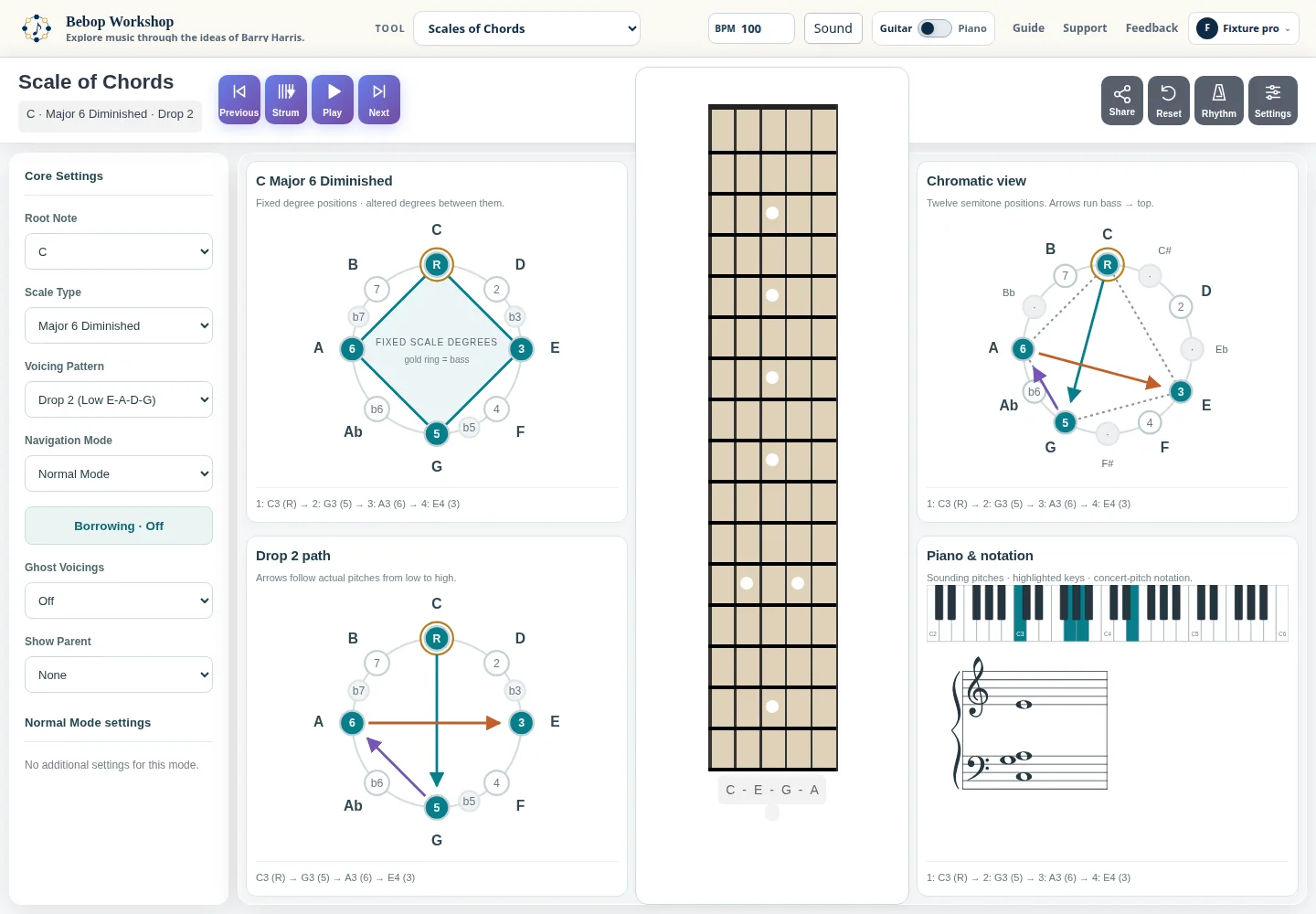
Scale of Chords maps chord voicings through a scale on a guitar fretboard or piano. Choose a root, scale, voicing, and navigation mode, then use the transport and display controls to inspect each chord and its movement.
Choose a starting setup
The Core Settings panel starts with Root Note, Scale Type, Voicing Pattern, and Navigation Mode. Change the root and scale first, then choose the voicing pattern. The fretboard redraws around the current position; Reset Position returns to the app's starting position for the selected setup.
Normal Mode is the basic step-through view. Hand Position Loop and Hand Position Up/Down keep the hand-position controls visible when those modes are selected. Other navigation modes expose their own options after you choose them.
- Choose a Root Note.
- Choose a Scale Type and Voicing Pattern.
- Leave Navigation Mode at Normal Mode for a first pass.
- Press Next or Previous in the header to move through the displayed chord.
Use Borrowing and Ghost Voicings
Open Borrowing · Off to choose Scale Tone Above, Scale Tone Below, Half Step Below, or Advanced · individual rules. The basic dialog can apply a preset, target voices from low to high, or target intervals from the scale root. Advanced rules let you add, remove, and order individual rules; when rules overlap, the last matching rule wins.
Ghost Voicings controls the reference display without changing the current chord. Choose Scale Above, Scale Below, Scale Both, or Upcoming (follows Next/Previous), or turn it Off. A ghost preview may be unavailable for a particular starting point; the app reports that in the practice status.
- Open Borrowing and choose a movement.
- Choose an application preset or select voices or intervals.
- Close the dialog, then use Next or Previous to see the borrowed result.
- Choose a Ghost Voicings setting when you want a neighboring reference shape.
Set the display
Display Type switches between Horizontal Fretboard, Vertical Fretboard, and Piano Mode. Fretboard Size and Fret Count control the visible board. Show Fret Numbers and Show Fret Markers add or remove those labels; Horizontal Flip changes the board orientation. In Piano Mode, Show Fretboard in Piano Mode can keep the fretboard visible with the piano.
The same displayed voicing can be inspected in the guitar or piano view. When the site provides the shared instrument selector, its guitar or piano choice is reflected here; standalone use keeps its own display behavior.
Play sound, rhythm, and MIDI
Set BPM in the top header, from 60 through 200. Audio & Rhythm contains Instrument, Volume, Click Type, Click Volume, Beats per Chord, and Auto-play chords during progression. The header's metronome button starts or stops the metronome; the selected click and beats-per-chord settings control its timing.
Next behavior decides whether Next advances and then strums the new chord (Strum next chord) or strums the chord currently shown and then advances (Strum current chord). Enable MIDI to advance asks for a MIDI device and uses the shown chord to trigger Next. The status line reports permission, connection, and secure-context problems.
- Use an HTTPS site or a localhost context for Web MIDI; a browser permission prompt is expected.
- If a soundfont is still loading, wait for the instrument to finish loading before retrying Play or the metronome.
- MIDI is an input option for advancing the map; it does not replace the on-screen fretboard or piano display.
Understand access labels
On the site, the basic C major 6 diminished and C minor 6 diminished setups with the public voicings are available as basic access. Root changes and the core voicings are labeled separately, while other scale families, voicings, navigation modes, borrowing, ghosting, MIDI, and nondefault practice or voice-leading controls can require Pro access.
When the site blocks a change, the app preserves the current chord and shows an access notice. A saved advanced choice may remain retained while the app shows a usable setup for the current account; regaining access restores the retained choice. A shared setup is a session view and does not grant account access.
Troubleshoot common problems
If a selected option immediately returns to its previous value, read the access notice beside the app: the site has rejected that operation and preserved the chord. Use the offered access action or reset to the basic C major 6 diminished · Drop 2 setup, then try again.
If a shared link does not load, check that the whole URL was copied and that the setup is within the selected fret range. A malformed or unsupported setup is rejected rather than silently replaced. If the fretboard is blank, choose a supported Display Type and press Reset Position; if there is no sound, click Play once to let the browser start audio and check Instrument and Volume.